
How to check a lock file for known vulnerabilities
A lock file pins hundreds of packages you never chose. Here is how to see which ones have a known advisory, what to upgrade to, and how to hear about the next one.
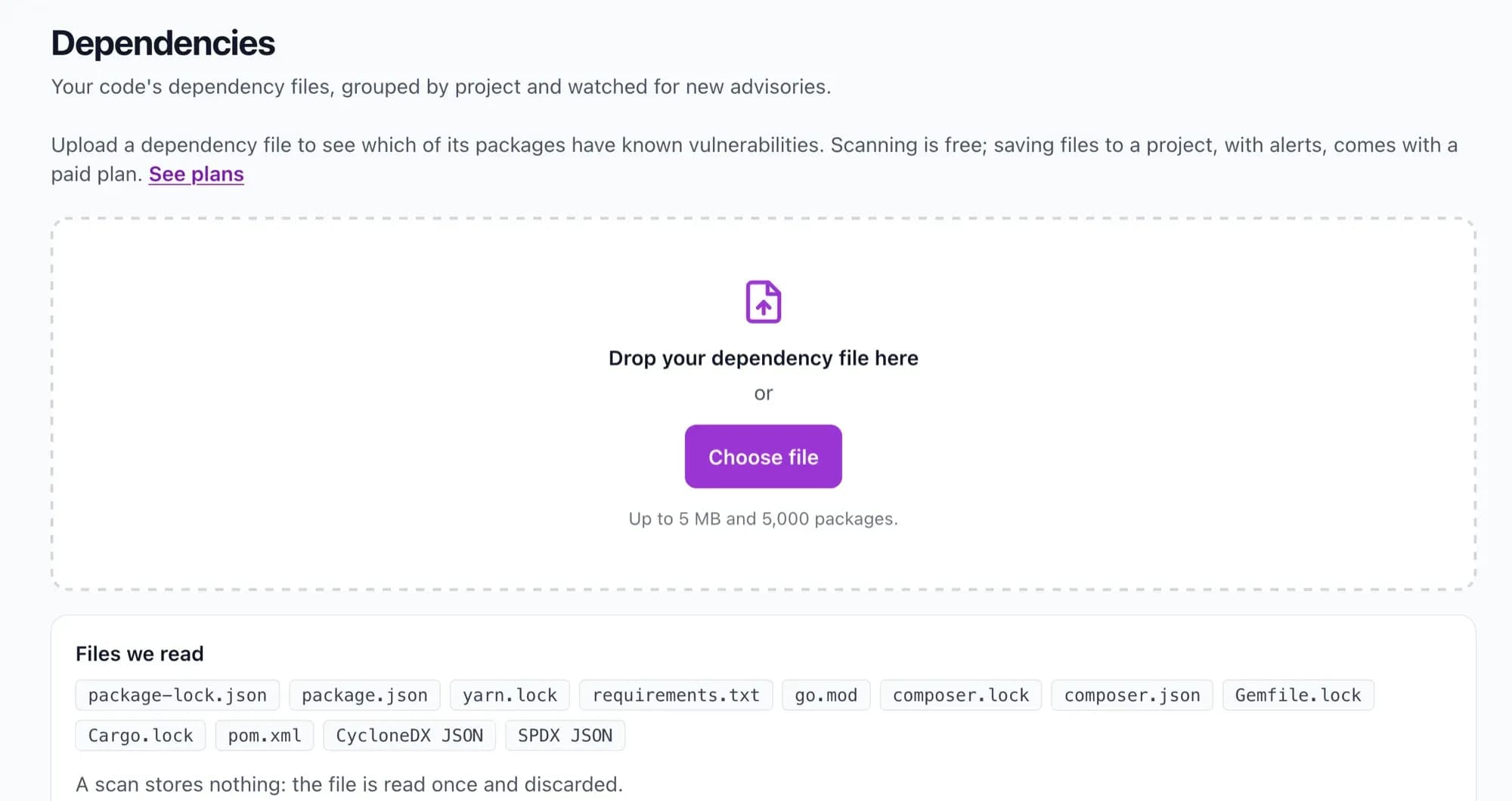
Open any package-lock.json and count the entries. A small web app has a few hundred. You chose maybe twenty of them. The rest came along.
Each of those packages is pinned to an exact version. The useful questions are simple:
- Which of these versions has a known vulnerability?
- What should I upgrade to?
- How will I know when a new one is found next month?
VulnTracker now answers all three. The feature is called Dependencies.
Scan a file
Sign in, open Dependencies and choose Scan a file. Drop in a lock file, a manifest or an SBOM.
For every package with a known advisory you get one row:
- the package and its ecosystem (npm, PyPI, Go, Maven…)
- the version in your file
- the severity
- Upgrade to X, or No patched version listed when there isn't one yet
Open a row to see the advisories behind it. Each one links to GitHub and to the CVE page on VulnTracker.
A scan stores nothing. You see the result and that's it.
Files we read
| Ecosystem | Files |
|---|---|
| npm, Yarn | package-lock.json, yarn.lock, package.json |
| Python | requirements.txt |
| Go | go.mod |
| Rust | Cargo.lock |
| Ruby | Gemfile.lock |
| PHP | composer.lock, composer.json |
| Java | pom.xml |
| SBOM | CycloneDX JSON, SPDX JSON |
Files can be up to 5 MB. We work out the format from the file name, so keep the original name.
Lock file or manifest?
The difference matters.
A lock file says exactly which version is installed. That gives an exact answer.
A manifest often gives a range instead: ^4.17.0 in package.json, requests>=2.20 in an unpinned requirements.txt. A range does not tell us which version you run. So we don't guess. Those packages come back as Check manually, with the declared range next to them.
If you see a lot of those, upload the lock file instead.
The same goes for a pinned version we can't compare against an advisory's range. It reads Version couldn't be compared, check manually. We would rather say that than give you a false all clear.
Where the answers come from
Packages are checked against the GitHub Advisory Database, and only against advisories GitHub has reviewed. GitHub records the affected range and the first patched version for each package. Upgrade to X is that first patched version.
The same advisories now appear on our CVE pages too. A CVE that GitHub has reviewed shows a GitHub Advisory block under Vendor advisories. It lists the ecosystem, the package, the affected range and the first patched version. GitHub's own severity rating is labelled as GitHub's, because it can differ from the CVE's. CVE-2021-44228 is a good one to look at.
Save it and get alerts
A scan tells you about today. New advisories keep coming.
Choose Save and get alerts and the file goes into a project. A project is one app or service, and it can hold several files: the frontend's package-lock.json, the API's go.mod, the worker's requirements.txt.
What we keep is the package list: each package's name, version and ecosystem. We don't keep the file.
When a new advisory covers a package in a saved project, we send an alert:
- It goes to your team's Slack, Microsoft Teams or Telegram channels.
- Critical and high findings are sent on their own. Lower severities are grouped, at most once a day.
- Your team's notification switch and minimum severity apply.
- What you already saw on upload is never sent again as an alert.
- A finding with a CVE id also opens a card on your team's board, next to the rest of your patch work.
Only exact versions are watched. A range from a manifest is not. Upload the lock file to watch those packages.
When you update your dependencies, choose Upload a new version. The project keeps watching the new list.
Got an SBOM?
A CycloneDX or SPDX file often lists more than code packages. It can also list servers, operating systems and appliances.
Those are not dependencies, so they are not checked against GitHub. Dependencies lists them separately under Infrastructure in this SBOM, matched to our product catalogue.
To track their CVEs, open Inventory and choose Import from SBOM. You see a preview first. Nothing is tracked until you confirm.
So code goes to Dependencies, and the software you run goes to Inventory.
Plans
| Plan | Dependencies |
|---|---|
| Free | Scan any file. No saved projects. |
| Pro | 1 project, up to 5,000 packages |
| Business | 5 projects, up to 5,000 packages each |
Prices are on the pricing page.
Try it
Pick the lock file of the service you worry about most and scan it. If the result is useful, save it to a project. The next advisory that covers one of its packages will come to you.
New to CVEs? Start with What is a CVE.